Notes & tools · KWTVA

KWTVA · Note

Where Moments Become Memory

Small tools I built for my own days, shared as a foundation. Take one and make it yours.

No. 01

Duty Card

A personal attendance card for the fingerprint system: check-in, presence and check-out, permissions, leaves and holidays, with reminders on your phone. You set it up with Claude in a few minutes.

Before you start

  1. 01
    Notifications

    Turn on notifications for the Claude app on your phone, so the fingerprint reminders reach you.

  2. 02
    Your privacy

    The app and your data live in your own Claude account. No one can see them, not even the owner of this site, unless you share the link yourself. So keep the link to yourself.

  3. 03
    For comparison only

    It compares what you record with your actual attendance. The official record is the fingerprint machine and your employer’s system.

  4. 04
    A foundation

    This is the basic build. If you want to change it or add something, ask Claude and it will adapt it the way you like.

  5. 05
    The file

    Attach duty-card.html together with the prompt.

Three steps

  1. Download the app

    duty-card.html is the app itself, in one file.

  2. Copy the prompt

    It tells Claude how to set everything up for you.

  3. Open Claude

    Attach the file and paste the prompt. You set your hours from the setup window inside the app.
Download the app
The prompt
No. 02

Gym Calendar

A workout calendar built on your own split: today’s session and its exercises, moving a workout to tomorrow, supplements, water and protein, with reminders on your phone. You set it up with Claude in a few minutes.

Before you start

  1. 01
    Notifications

    Turn on notifications for the Claude app on your phone, so the workout, supplement and water reminders reach you.

  2. 02
    Your privacy

    The app and your data live in your own Claude account. No one can see them, not even the owner of this site, unless you share the link yourself. So keep the link to yourself.

  3. 03
    A log only

    It logs your workouts, supplements, the water you drink and your protein. It is not medical advice or a training program.

  4. 04
    A foundation

    This is the basic build. If you want to change it or add something, ask Claude and it will adapt it the way you like.

  5. 05
    The file

    Attach gym-calendar.html together with the prompt.

Three steps

  1. Download the app

    gym-calendar.html is the app itself, in one file.

  2. Copy the prompt

    It tells Claude how to set everything up for you.

  3. Open Claude

    Attach the file and paste the prompt. You set your split, supplements, bottle size and protein goal from the settings inside the app.

Download the app
The prompt
No. 03

Day & Date

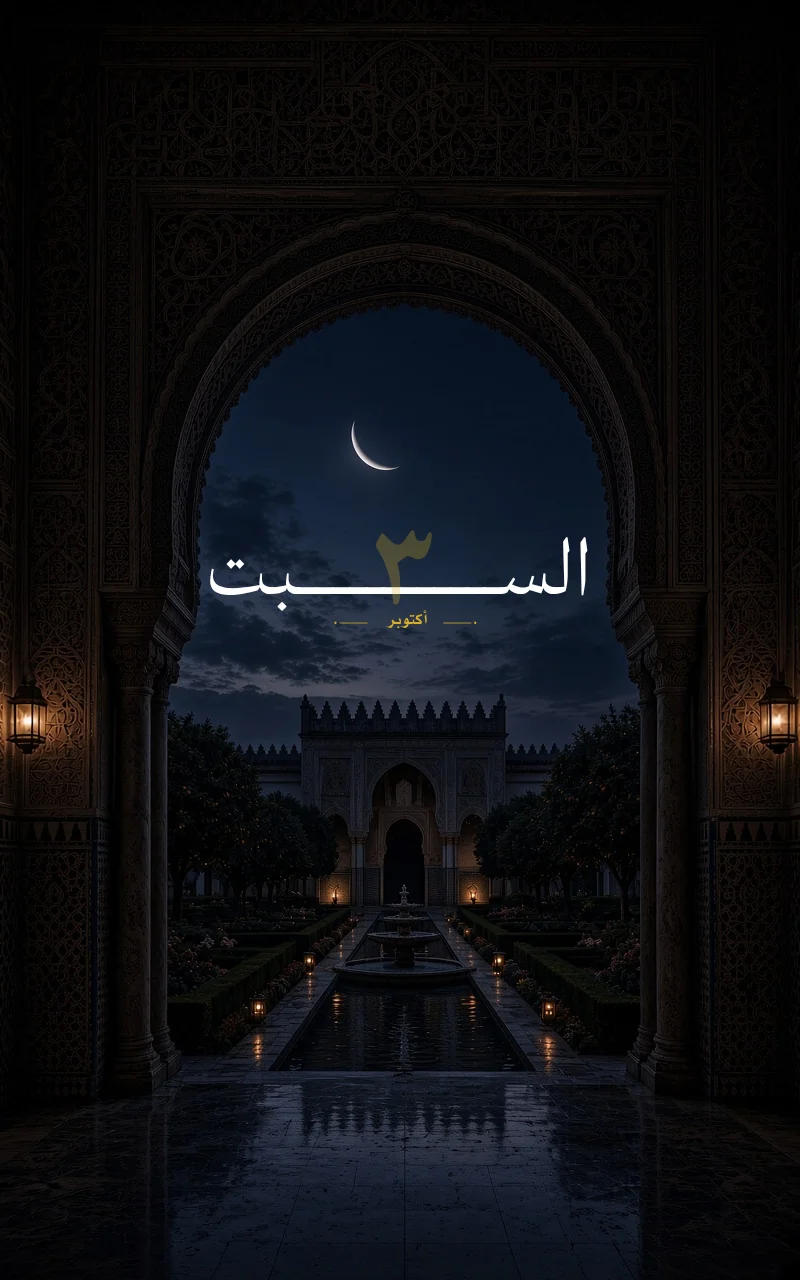
A wide KWGT widget with the day in Arabic, a large golden date and the month, made for a home screen like this one. Download it and add it in a minute.

The Day & Date widget on the Andalusian Moonlight wallpaper, showing Saturday, the date 3 and October

Before you start

  1. 01
    The app

    It needs the KWGT app on Android. It does not work on iPhone.

  2. 02
    The fonts

    The fonts are inside the file, so it looks the same without installing anything else.

  3. 03
    The wallpaper

    The picture uses Andalusian Moonlight from the archive, and its prompt is on the Prompt page.

  4. 04
    A foundation

    You can change its colors and fonts from the KWGT editor the way you like.

Three steps

  1. Download the widget

    daydate.kwgt is the widget itself, in one file.

  2. Add a KWGT widget

    Long-press your home screen, open Widgets, choose KWGT and pick a wide size like 4×1.

  3. Import the file

    Tap the empty widget, choose import in KWGT, pick daydate.kwgt from your downloads, then save.

No. 04

Training Project

A Claude project that coaches your lifting, built on the idea of Jeff Nippard’s Hybrid program: heavy strength work and muscle-building volume in one plan, with every session logged. Claude asks about your level, days and equipment, then builds the plan with you.

Before you start

  1. 01
    The idea

    Hybrid training mixes two goals in one plan: getting stronger on a few main lifts with low reps and heavy weight, and building muscle with more sets and reps. Jeff Nippard explains it best on his channel.

  2. 02
    Ideas, not my program

    This note shares the approach only. My exercises, weights and split stay mine, and Jeff’s full program is his: if you want it complete, get it from him.

  3. 03
    With thanks

    I found this program through @Hawks0x on X.

  4. 04
    Not medical advice

    Claude helps you plan and log. If you have an injury or a health condition, check with a professional first.

  5. 05
    Pairs with the Gym Calendar

    Use it with Note 02 for daily reminders and logging: Claude can write your plan straight into the calendar.

Three steps

  1. Open Claude

    Start a new project, or a normal chat if you prefer.

  2. Copy the prompt

    Paste it into the project instructions, or as your first message.

  3. Answer its questions

    Claude asks about your level, days, equipment and exercises, then builds your plan and reviews every session with you.

The prompt
No. 05

Match Briefing

A Telegram channel that sends you the day’s Premier League and Champions League matches every day at 12 noon Kuwait time, and El Clásico when it is announced: the teams, the time, the stadium, the TV channel and the commentator.

Before you join

  1. 01
    The app

    You need the Telegram app.

  2. 02
    Notifications

    Turn on the channel’s notifications so the briefing reaches you as soon as it is posted.

  3. 03
    Quiet days

    On a day with no matches, nothing is sent.

  4. 04
    “Not announced”

    If the TV channel or the commentator is not announced yet, it says “not announced”. If it is announced later, an update comes in the afternoon.

  5. 05
    It clears itself

    Every message is deleted after 24 hours, so the channel stays clean.

Three steps

  1. Open the channel

    Tap the button below, or search for @kwtva in Telegram.

  2. Join

    Tap Join.

  3. Turn on notifications

    Tap the bell, and the briefing reaches you every day.

Join the channel ↗ Free, and you can leave any time
No. 06

Dock

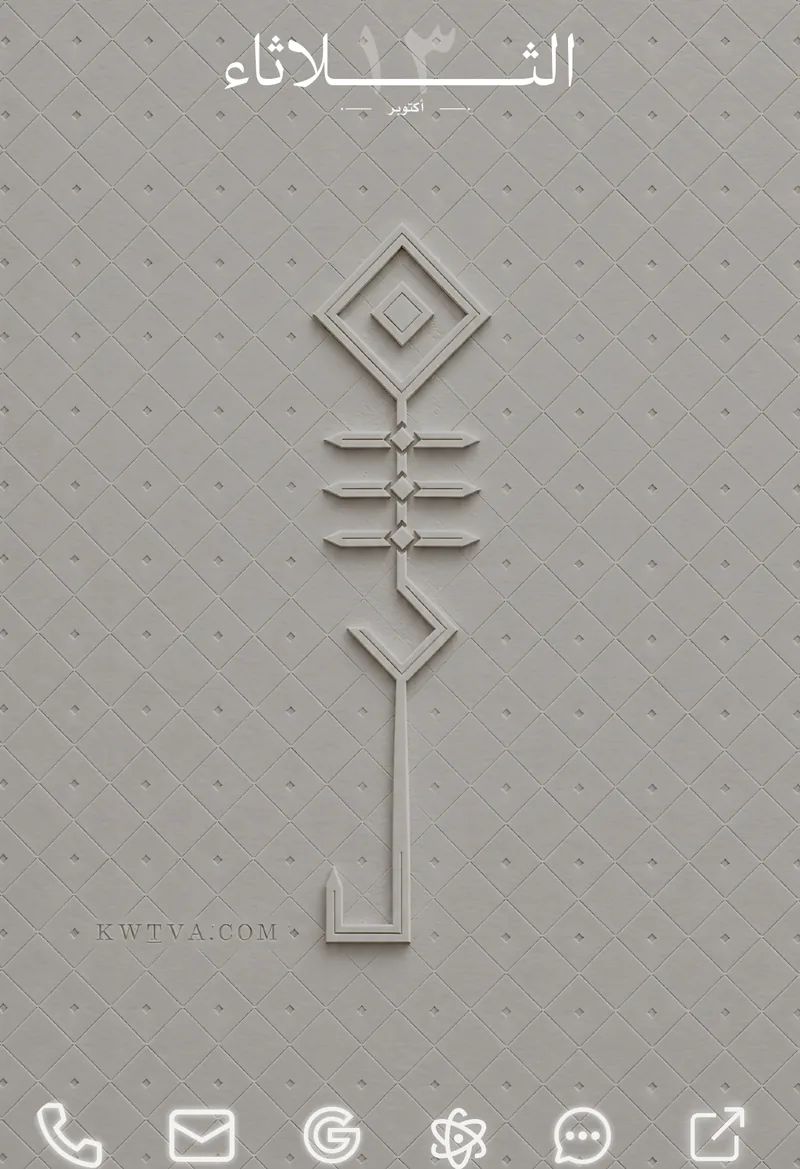
A row of gold-glow icons for the bottom of your home screen that opens your apps in one tap: phone, mail, browser, Claude, WhatsApp and one app of your choice. It pairs with the Day & Date widget, No. 03.

A home screen with the Day & Date widget at the top, a white embossed vertical name logo on paper in the middle and the Dock of six white-glow icons at the bottom

Before you start

  1. 01
    The app

    It needs the KWGT app on Android. It does not work on iPhone.

  2. 02
    The icons

    The icons are inside the file, so it looks the same without installing anything else.

  3. 03
    Link your apps

    Each icon is linked to an app on my phone. If one opens nothing, open the KWGT editor, select it and change the app under Touch. The last arrow is left for an app you choose.

  4. 04
    The wallpaper

    The logo in the picture is drawn with the Name tool on this site, in the Silver on charcoal look. Type your name and get it in the same script.

  5. 05
    A foundation

    You can change its icons and colors from the KWGT editor the way you like.

Three steps

  1. Download the widget

    dock.kwgt is the widget itself, in one file.

  2. Add a KWGT widget

    Long-press your home screen, open Widgets, choose KWGT and pick a wide size like 4×1 or 5×1, at the bottom.

  3. Import the file

    Tap the empty widget, choose import, pick dock.kwgt, then save.